Heads up — this is the DIY route
This guide is more involved than the voice-reminder button. You'll wrangle three Home Assistant integrations (ZHA, Google Cast, LG WebOS), pair six Zigbee buttons, and import five blueprints. Most of it is following clear steps — but it's not a weekend skim. There's also a hard hardware requirement: your TV must be an LG model with WebOS (the off / radio / news buttons use the WebOS API for power, source switching and channel tuning).
Good fit if…
- You're comfortable with Home Assistant or willing to learn
- The TV is an LG model with WebOS (most LG smart TVs since ~2014)
- You can install a Google TV dongle on the TV
- The home has reliable Wi-Fi
- Your relative is in the mild-to-moderate stages of dementia
Not the right fit if…
- The TV is Samsung, Sony, Panasonic, etc. (not LG WebOS)
- You can't install a streaming dongle on the TV
- You need an emergency or safety-monitoring system
- Nobody wants to maintain Home Assistant long-term
Looking for something simpler? The voice-reminder button guide is much smaller in scope (one button, one speaker), and RemindMeVoice is the managed version of that voice product. There's no managed equivalent of this TV setup yet — if you'd want one, the signup at the bottom of this page is where to register interest.
At a glance
- Time
- 3–5 hours, more if you're new to Home Assistant
- Difficulty
- Moderate-to-fiddly — three integrations, six paired buttons
- Hardware cost
- ~£200 (assumes you already have an LG WebOS TV)
- Ongoing maintenance
- Low — occasional HA updates, rare Zigbee re-pairing
- Fiddliest steps
- Pairing the Zigbee buttons + getting CEC TV-wake reliable
- Day-to-day for your relative
- Press one big coloured button per thing they want to watch
You'll also need
- An LG WebOS TV with SIMPLINK (HDMI-CEC) support
- A spare HDMI port + USB-A port on the TV (for the Google TV dongle and a USB power tap)
- Existing Wi-Fi at your relative's home
- Existing Home Assistant — or follow the voice guide's HA Green setup first
- A spare USB port on the HA host for the Sonoff Zigbee dongle
- A laptop or phone for the setup itself
What "simple TV for elderly" actually means
A standard TV remote has thirty-plus buttons. A modern smart TV layers menus on top of menus — input source, app launcher, voice assistant, settings. Voice control sounds like the answer until it isn't: forming the sentence, getting the wake word right, and waiting for it to interpret are exactly the steps that fail in moderate dementia.
A genuinely simple TV for elderly users — and especially dementia friendly TV setups — strips all of that away. One labelled button does one expected thing, every time. No menus to remember. No remote to hunt for. No "press input, then scroll, then OK". Just press red to switch off, blue for radio, yellow for news, white for the next episode of a favourite show. That's the bar this guide is aiming for.
Why I built this
TV remotes had become impossible. Modern smart-TV remotes have forty-plus buttons; even the simple ones still demand a menu on-screen and a few clicks to get anywhere. For a relative with dementia, that's a closed door — and the loneliness that follows from "I can't even put the TV on any more" is a real loss. So I wired up six big coloured buttons on a side-table tray, one each for the things she actually wanted: radio, news, and a few favourite shows. No menus, no remote, no voice commands. Press blue, hear Classic FM. Press red, TV off. That was it.
Why standard remotes fail for TV for dementia patients
In plain search terms, this is a simple TV setup for elderly parents and a dementia friendly TV remote replacement — six big colour-coded TV buttons, one purpose each, for someone who struggles with normal remotes, smart-TV menus, input switching or voice commands. DIY, built on Home Assistant.
A typical TV remote has fifty buttons. The smart-TV ones have menus on top of menus — input source, app launcher, voice assistant, settings, the lot. For someone with dementia, that's three or four steps too many between sitting down and watching something. The result is a TV that often just stays off.
Big-button TV remotes for dementia sold online help a little — fewer buttons, larger labels — but they still rely on the user knowing which sequence of presses gets to a live channel or a streaming app. Once that mental map breaks down, even a six-button "easy remote" stops working.
Voice control isn't the answer either. "Alexa, play Classic FM on the kitchen speaker" requires forming the sentence, getting the wake word right, and waiting for it to interpret. Smart speakers degrade in usefulness exactly as dementia progresses.
What works: one big button per thing they want to watch. Press red to turn the TV off, blue for radio, yellow for news, white for the next episode of their show. Six tactile buttons on a tray within reach. No remote, no menus, no voice commands. The TV does what they expect, every time.
What each button does
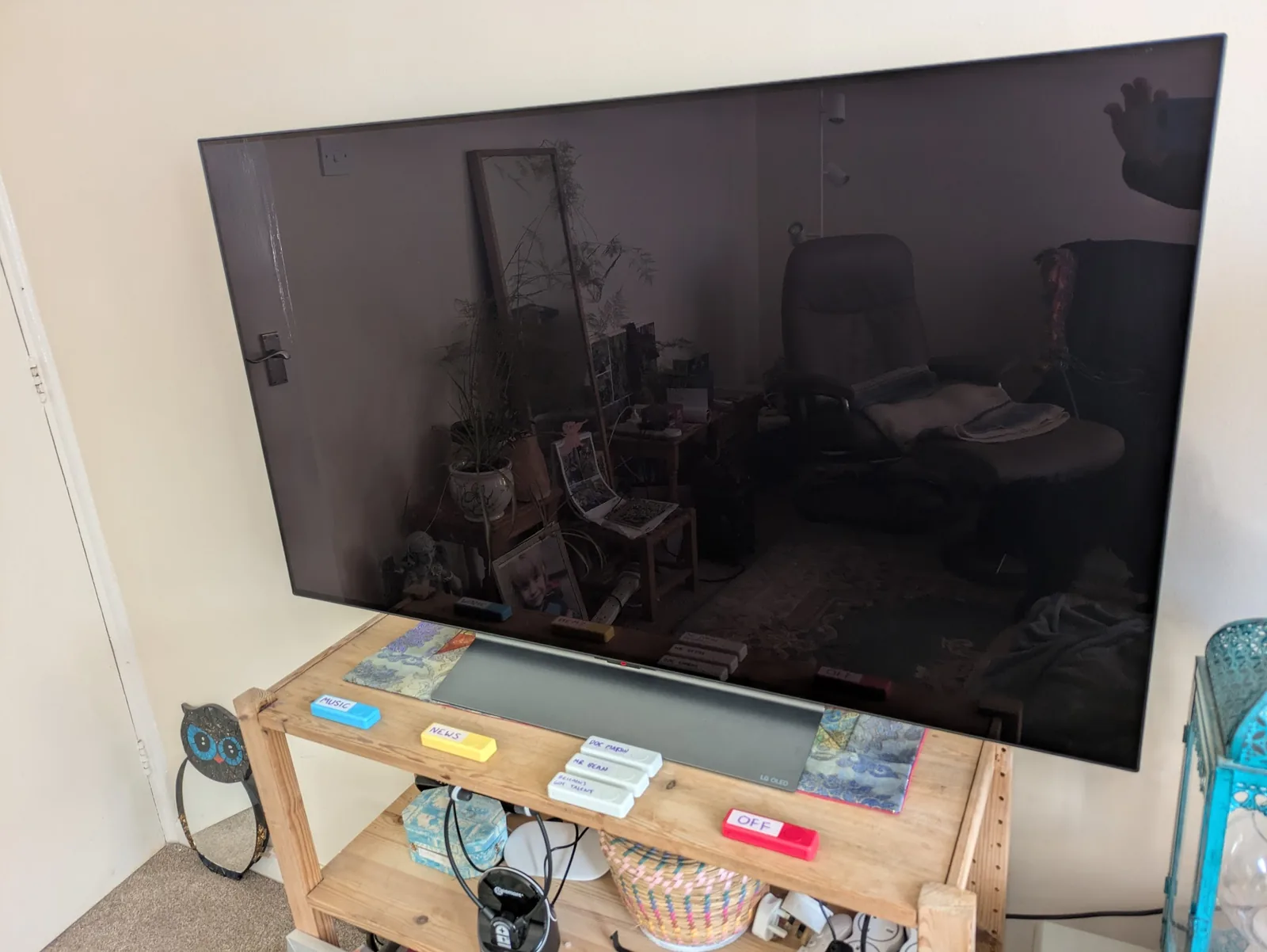
Six dedicated buttons. One press, one outcome. The colours act as the labels.
Red — Off
Pauses whatever's playing on Cast (so the position is preserved) and powers off the TV. One press, TV goes to sleep.
Blue — Radio
Wakes the TV if it's off, switches to the dongle's HDMI input, and plays a fixed internet radio stream (Classic FM by default — any URL works).
Yellow — News
Wakes the TV, switches to the Freeview input, and tunes a specific channel by sending the digits to the LG. BBC News on 231 by default.
White × 3 — YouTube shows
Three white buttons, each plays the next video in a curated YouTube playlist for one show. Press while paused to resume; press while playing to skip to the next.
Auto-advance
When a YouTube video finishes, the next one in the same show's playlist starts automatically. Hours of viewing without a single button press.
Off → next episode
Off pauses and powers down the TV. Pressing the same white button later plays the next episode in that show's playlist — by design, not mid-video resume. Simpler and works well for serialised shows.
How it works
Buttons talk to Home Assistant; HA talks to the TV two different ways depending on what's needed.
The flow on each press:
- The Zigbee button sends an event to Home Assistant.
- Home Assistant looks up which automation owns that button.
- Depending on the button, HA either:
- Talks to the LG TV directly via the WebOS API — power on/off, source switching, channel digits (used for Off, Radio, News).
- Casts content to the Google TV dongle — for streams (radio) or YouTube videos (the show buttons).
- If a YouTube video finishes, an auto-advance automation fires and casts the next one.
Recommended hardware
Roughly £200 of hardware (assuming you already have an LG TV). The specific brands matter — the blueprints are tested against these.
Affiliate disclosure: Some links on this page may be affiliate links. If you buy through them, I may earn a small commission at no extra cost to you. I only recommend hardware I've actually used in this setup, or close equivalents.
Sonoff Zigbee 3.0 USB Dongle Plus
~£30USB Zigbee coordinator that lets Home Assistant talk to the buttons. Plugs into a free USB port on the HA host.
View on Amazon6× Third Reality Smart Buttons (3RSB22BZ)
~£15 eachBattery-powered Zigbee buttons with a clicky tactile press. Available in green / yellow / red / blue / white / black; pick six covering off, radio, news, and three white for the show buttons.
View on AmazonGoogle TV / Chromecast dongle
~£40HDMI dongle that runs YouTube and accepts Cast commands. Powers from a USB-A port on the TV.
View on AmazonHome Assistant host
~£99 if newYou need somewhere for Home Assistant to run. The voice-reminder guide recommends the official HA Green box (~£99); any existing HA setup works equally.
View on AmazonLG WebOS TV
already ownedThis guide assumes you already have an LG smart TV with WebOS — most LG models since around 2014. SIMPLINK (HDMI-CEC) needs to be enabled.
Step-by-step setup
Click any step for the full walkthrough. Most of these are short; steps 3 and 4 (Zigbee pairing and the TV integrations) are where most of the time goes.
-
Have Home Assistant running on the same network as the TV
Skip if you already do. Otherwise follow the voice-reminder guide first.
Show the full walkthrough
This guide assumes Home Assistant is already up and running at your relative's home, on the same Wi-Fi as the TV. If it's not:
- Easiest path: an HA Green on Ethernet — see the voice guide hardware section and the first two setup steps there.
- Existing HA on a Pi / NUC / NAS works equally; it just needs to be reachable from the same LAN as the TV and dongle.
Once you can open Home Assistant in a browser and you're logged in as admin, come back here.
-
Plug in the Sonoff Zigbee dongle, add ZHA
USB into the HA host, add the ZHA integration in HA, accept "recommended setup", wait for the network to form.
Show the full walkthrough
- Plug the Sonoff Zigbee 3.0 USB Dongle Plus into a free USB port on the Home Assistant host.
- In HA: Settings → Devices & Services → + Add Integration → ZHA (Zigbee Home Automation).
- HA usually auto-detects the dongle on a serial port like
/dev/ttyUSB0. Confirm it. - Choose Recommended setup. Wait around 50 seconds for the Zigbee network to form.
- The ZHA integration will appear with no devices yet — that's the next step.
If the dongle isn't auto-detected
Some HA hosts need a USB extension cable to keep the dongle out of the host's RF noise. Try plugging it into a USB extension if pairing later turns out to be flaky.
-
Pair the six Zigbee buttons
One at a time, long-press the button until the LED flashes rapidly, and HA discovers it.
Show the full walkthrough
Pair each button one at a time — easier to know which is which. For each:
- In HA: Settings → Devices & Services → ZHA → + Add Device.
- Long-press the button for at least 5 seconds, until the LED flashes rapidly.
- HA should discover the button within 30 seconds. Name it as you pair it ("Off — Red", "Radio — Blue", etc.) so you can tell them apart later.
- Repeat for the other five buttons.
If a button won't pair on long-press
Some Third Reality firmware versions need 5 quick taps instead of one long press to enter pairing mode. Try that if long-press doesn't work after a couple of tries.
Note each button's device ID
When you import the blueprints, you'll pick each button by name from a dropdown. So as long as the names are distinct ("Off — Red" not "button 1"), you don't need to record device IDs by hand.
-
Set up the Google TV dongle and TV integrations
Plug in the dongle, install YouTube, then add three HA integrations: Google Cast, Android TV Remote, and WebOS TV.
Show the full walkthrough
Physical setup
- Plug the Google TV dongle into a free HDMI port on the LG TV. Use the TV's USB-A port for power if possible — that way the dongle stays powered when the TV is on.
- Run through the on-screen Google TV setup with the included remote (one-time only).
- Install YouTube from the Play Store on the dongle. (Other apps optional.)
Enable SIMPLINK on the LG TV
- On the LG: Settings → General → External Devices → SIMPLINK (HDMI-CEC) → On.
- Settings → General → Devices → External Devices → TV On With Mobile → Wi-Fi. (Allows CEC wake from the dongle.)
Add the Google Cast integration in HA
- Settings → Devices & Services → + Add Integration → Google Cast.
- HA auto-discovers the dongle. Confirm. A media_player entity appears (e.g.
media_player.living_room_tv).
Add the Android TV Remote integration
- + Add Integration → Android TV Remote.
- Enter the dongle's IP address (find it on the dongle: Settings → Network → MAC and IP).
- Accept the PIN that appears on the TV. A
remote.living_room_tventity is created.
Add the WebOS TV integration
- + Add Integration → WebOS TV.
- Enter the LG's IP. Accept the pairing prompt on the TV. A
media_player.lg_webos_tv_*entity appears.
Note the entity IDs
You now have three TV-related entities in HA:
- Google Cast media player (Cast/audio/YouTube target)
- WebOS TV media player (LG power, source, channels)
- Android TV Remote (CEC wake)
These three are inputs in every TV blueprint. Note them down or just remember roughly what they're called — the dropdowns in the blueprint UI make picking easy.
-
Create the helpers
One
input_selectfor which YouTube show is "current", and oneinput_numberper show for its rotating playlist position.Show the full walkthrough
The YouTube blueprints reference helpers HA doesn't ship — you create them yourself, once.
The current_show input_select
- Settings → Devices & Services → Helpers → + Create Helper → Dropdown.
- Name:
current_show(entity ID becomesinput_select.current_show). - Add one option per YouTube show button — short, lowercase, no spaces. For Ruth's setup that's
doc_martin,mr_bean,bgt. Use whatever your relative actually watches. - Initial option: pick any.
One input_number per show
These store the rotating index into each show's playlist. Repeat per show:
- + Create Helper → Number.
- Name:
doc_martin_playlist_index(or whatever matches the show option above). - Minimum:
0. Maximum:50(or larger than your longest playlist). Step:1. No unit. - Initial value:
0.
Repeat once per YouTube show button. Three white buttons → three input_numbers.
-
Import the blueprints
Five blueprints — see the blueprints section below. Each opens directly in your HA.
Show the full walkthrough
For the full Ruth setup (Off + Radio + News + 3 YouTube shows + auto-advance), you'd import:
- tv-off-button — once
- tv-stream-button — once (for Radio)
- tv-live-channel-button — once (for News)
- tv-youtube-show-button — three times (one per white show button)
- tv-youtube-auto-advance — three times (one per show)
Total: 9 automation instances from 5 blueprints. Importing a blueprint is a one-click action; configuring each instance is the next step.
If you only want a subset (e.g. just Off + Radio), only import those blueprints and skip the rest.
-
Configure each automation
For each imported blueprint, fill in the dropdowns. Most inputs are the same across blueprints (Cast / WebOS / Remote entities); per-blueprint inputs are described in the blueprint section.
Show the full walkthrough
After importing a blueprint, in HA: Settings → Automations & Scenes → + Create Automation → From a Blueprint → pick the blueprint → fill in the inputs → save with a name like "TV Off (Red)" or "TV Radio (Blue)".
Inputs that are the same across most blueprints
- Cast media_player: the Google Cast entity (one per setup).
- WebOS TV media_player: the LG entity (one per setup).
- Android TV Remote: the CEC wake entity (one per setup).
- HDMI source name: the LG's name for the dongle's HDMI port. Default "Living room TV" works for many; check the LG's input list if unsure.
- Live TV source name: usually just "Live TV" on LG.
Inputs that vary per blueprint
- tv-stream-button: the stream URL (e.g.
https://media-ice.musicradio.com/ClassicFMMP3for Classic FM). - tv-live-channel-button: the channel number (e.g.
231for BBC News). - tv-youtube-show-button: this show's input_number, this show's option in input_select (e.g.
doc_martin), and the playlist of YouTube video IDs (one per line). - tv-youtube-auto-advance: same playlist + index + option as the matching show button.
Building a YouTube playlist for a show button
Each white button plays through a curated list of YouTube videos. The playlist lives directly in the blueprint's configuration — no separate playlist file, no HA dashboard to edit.
- Find the video on youtube.com. The URL looks like
https://www.youtube.com/watch?v=s-2uplNrPzE. - Copy the video ID — the bit after
v=. In the example:s-2uplNrPzE. Always 11 characters; letters, numbers, hyphens, underscores. - Paste each ID on its own line in the blueprint's "Playlist of YouTube video IDs" input. Blank lines are ignored.
How the playlist plays
- The blueprint plays videos top-to-bottom, then loops back to the start.
- The matching
input_numbertracks the position. Each press of the white button advances by one (wrapping at the end of the list). - The auto-advance blueprint plays the next video when the current one ends — same playlist, same wrapping logic.
Critical: keep show button and auto-advance in sync
The show-button blueprint and its matching auto-advance blueprint each hold their own copy of the playlist. If you update one, you must update the other, or the buttons will drift out of sync after the next video ends.
(A future revision of this blueprint pack might share the list from a single source — for now, paste it in both.)
Updating a playlist later
- Settings → Automations & Scenes → click the show-button automation → Re-configure.
- Edit the playlist text. Save.
- Repeat for the matching auto-advance automation. Don't skip this step.
- If you've added videos beyond the input_number's current
maxrange, bump the helper's max to match.
-
Test each button
Press each in turn. Confirm the right behaviour, watch the automation Traces if anything goes wrong.
Show the full walkthrough
- With the TV off, press Radio. The TV should wake (CEC), switch to the dongle's HDMI input, and start the stream within ~10 seconds.
- Press Off. Stream pauses and TV turns off.
- Press News. TV wakes, switches to Live TV, tunes the channel.
- Press Off, then a White show button. TV wakes, casts a YouTube video.
- Wait for the video to finish. Auto-advance should kick in and play the next.
- Press Off, wait for the TV to power off, then press the same White button. The next episode in that show's playlist should start. (By design — we deliberately skip rather than try a fragile mid-video resume.)
If something doesn't work
Each automation has a Traces tab in the HA UI showing what happened on each press. Settings → Automations → click the automation → Traces. Look for red errors.
Common issues:
- YouTube cast does nothing. Likely a stale Cast session. The blueprints close the Cast session before the next play; if you've manually paused YouTube and then pressed a show button, give it 5 seconds.
- YouTube goes to a black screen. The dongle's HDMI source isn't selected. Check the "HDMI source name" input matches the LG's source list exactly (case-sensitive).
- News tunes the wrong channel. Channel digits sent too fast for the LG to register. Increase the inter-digit delay in the blueprint (currently 0.5s).
- Off doesn't turn the TV off. SIMPLINK isn't enabled. Re-check the LG's settings.
-
Mount the buttons and label them
Put them somewhere visible and within reach. The colour is the label, but a small printed key card next to them helps in the early days.
Show the full walkthrough
The aim: zero cognitive load. Your relative shouldn't have to read anything to use the buttons. Suggestions that worked for us:
- A tray on the side table next to the chair, with the six buttons arranged in a clear grid.
- A printed key card in big text — "Red = OFF", "Blue = RADIO", etc. — laminated and placed next to the tray. Useful for the first few weeks; less important once muscle memory takes over.
- Don't mount the buttons to the wall on day one. Move them around the first week, see where your relative actually reaches for them, then settle on the spot.
Battery life on Third Reality buttons is roughly a year of normal use, so changing them isn't a frequent chore — but keep a small note of the install date so you don't get caught out.
Pro tip — drive HA from an AI coding agent
If you're comfortable with AI coding tools — Claude Code CLI, GitHub Copilot CLI, Cursor, and similar — Home Assistant's REST API pairs beautifully with them. Create a long-lived access token (your HA profile → Security → Long-Lived Access Tokens), hand it to the agent along with your HA URL, and it can read entity states, push automation tweaks, query the logbook, and debug the daily summary directly from the terminal.
For this setup the agent is especially useful: there are ~15 entity IDs spread across three integrations, and tweaking YouTube playlists or channel digits is much faster as a conversation than via the HA UI. ("Add three Doc Martin videos to the Sunday afternoon playlist", etc.)
Security note: the token grants full access to your Home Assistant. Use it only on your own machine with tools you trust. Never paste a Home Assistant access token into a public web chat or untrusted tool. Revoke it from the same screen when you're finished.
Import the blueprints
Five blueprints that compose into the full setup. Each opens directly in your HA via the Import button — no YAML editing.
1. Off button
import oncePause the Cast and turn the TV off. Used by the red button in the Ruth setup.
2. Stream button
once per streamWake the TV, switch to HDMI, and cast an internet audio/video stream URL. Used by the blue button in the Ruth setup (Classic FM).
3. Live channel button
once per channelWake the TV, switch to Live TV (Freeview), tune to a specific channel via WebOS digit-presses. Used by the yellow button in the Ruth setup (BBC News on 231).
4. YouTube show button
once per showIf Cast is paused → resume. Otherwise advance to the next video in the show's playlist. Used by each white button in the Ruth setup (Doc Martin / Mr Bean / BGT).
5. YouTube auto-advance
once per showWhen a YouTube video finishes (and the matching show is "current" in input_select), advance the playlist and play the next. Pair with the show button for hands-off viewing.
The Import buttons use My Home Assistant to open each blueprint in your HA instance — you'll be asked which instance to use the first time.
Safety and limitations
This is not a medical or emergency system
This guide is based on practical family experience. It is not medical advice, clinical care guidance, or an emergency system. For safety, health, medication management, falls, wandering, or urgent care needs, speak to qualified professionals and use dedicated care systems.
This setup is for everyday convenience and reassurance — making the TV usable. It can fail in normal ways: Wi-Fi outages, dongle updates that change Cast behaviour, occasional Zigbee re-pairing. Always have backup processes in place: regular check-in calls, a key-holder nearby, and a proper personal alarm if your relative's needs warrant one.
Frequently asked questions
What is the simplest TV for elderly parents?
How do I make a TV easier to use for someone with dementia?
What's the best big-button TV remote for dementia?
Can you get a dementia-friendly TV without DIY?
Does this work with Sky or Virgin?
Must I use an LG TV?
Must I use a Google TV (Chromecast) dongle?
What about Apple TV / Roku / Fire TV?
Can I use other Zigbee buttons (not Third Reality)?
remote_button_short_press, single,
on, remote_button_long_press,
hold). Other Zigbee button brands emit different
commands — you'd need to look up your button's
zha_event commands and edit the blueprint
triggers, or use HA's Device Automation builder instead.
What if my parent presses two buttons at once?
mode: single,
so the second press queues until the first finishes. If the
buttons trigger genuinely simultaneously, the order is
non-deterministic — but in practice the actions are short
enough that double-presses aren't a real problem. The
biggest risk is two YouTube buttons fighting over the Cast
session; the close-then-play pattern in the blueprint
handles this.
What if the internet goes down?
Does the TV need to stay on for auto-advance to work?
Can I add more shows or buttons later?
input_number helper,
add an option to the input_select, then import
the show button + auto-advance blueprints once more for that
show. Adding a stream button (e.g. a different radio
station) is even simpler — just import
tv-stream-button again with a different URL.
Is this a medical device?
I'd rather not DIY this — is there a managed product?
Looking for audio reminders instead of TV control?
For audio reminders rather than TV control, see our managed voice-button product, RemindMeVoice — same simplicity philosophy, no DIY required.
Questions & updates
Got a question, suggestion, or something stuck? Drop it below and I'll reply by email. Particularly interested in: which TVs work besides LG, what other Zigbee buttons people are using, and whether a managed version of this setup would be welcome.
Thanks — got it
I'll reply by email if you've asked something. Otherwise, you'll hear from me when new blueprints land.